EDGE Essential Cellular User Manual & Setup Guide
Quick Start Guide & Device Reference
What's in the Box
- 1 × EDGE Data Logger
- 1 × Mounting sticker
- 4 × AA batteries (pre-installed)
Device Overview
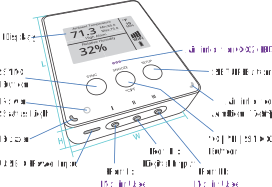
Step-by-Step Setup Guide
Follow these instructions to register your device, get it connected to the internet, and understand its daily operation.
Create Account & Register Device
- Go to app.maxlinc.com or Scan the QR on the display.
- Create and verify your account.
- If using a mobile device, log in and scan the QR code on the device screen again to auto-fill the Serial Number and DUID, or enter them manually.
Why register first?
The system will guide you through step-by-step configuration (recording intervals, sync intervals, alarm thresholds) and ensure the device can successfully connect to the MaxLinc cloud when it comes online.
Connect to the Internet
Cellular Connection
Your device connects to the internet via its built-in global eSIM. No SIM card is required.
- Simply press the SYNC button (left button) to attempt a connection.
- The device will automatically connect to the best available cellular network in 173 countries.
- Comes with unlimited data under a MaxLinc subscription.
WiFi Redundancy (Optional)
You can also configure WiFi as a redundancy with automatic rollover. If there is no WiFi it connects via cellular, and when WiFi returns it automatically switches back.
- Press the SETUP button (right button).
- Connect your phone/PC to the "Datalogger" WiFi network.
- A setup page will open. (If not, navigate to 8.8.8.8 in your browser).
- Choose your 2.4 GHz WiFi network and enter the password.
Read Display & Ports
Port I & Port III (Not in Use)
These ports are disabled for EDGE Essential and EDGE Air models.
Port II (Digital Input)
Digital input for dry contact sources (not included), such as a door sensor, flood sensor, or external fridge alarm. Uses a 2-pole terminal to 3.5mm (1/8 in) audio jack adapter.
The display updates at each recording interval (not between 2 readings). It pauses updates below 0°C (32°F) to preserve screen performance.
Buttons, Alarms & Daily Use
Button Functions
- Left (SYNC): Instantly sends data to the cloud.
- Middle (°C/°F/SNOOZE): Tap to toggle units. Tap during alarm to snooze buzzer. Hold for advanced metrics.
- Right (SETUP): Activates WiFi hotspot for configuration.
Alarms & Notifications
- Delivery: Email (Free), SMS, Phone Call, Audible Beep.
- Triggers: High/Low limits, Mold risk, Port II contact closure, power loss/restoration.
- Action: Alarms trigger an immediate sync. Recording interval shortens to 1 minute. Buzzer sounds for 5 seconds.
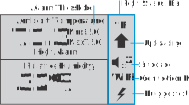
Status Icons: Top to bottom: Measuring Unit, Recording Interval, BLE/Mute icon, Signal Strength, Connection Type, Battery Level.
Power: Runs on 4 × AA batteries or USB-C 5V. Device automatically switches based on availability.
BLE Support: Both models broadcast BLE for real-time local viewing. A MaxLinc Gateway is required to capture BLE data, but is NOT required for standard logging and alarms (which use WiFi/Cellular).